Single sign-on (SSO)
Let your people sign in with their company account; you control who gets in from your sign-in service.
With single sign-on, your people sign in to 93 Compliance with their company account instead of an emailed link or a password. Whoever runs your company’s sign-in service decides who may use 93 Compliance, and 93 Compliance never sees anyone’s password.
Today 93 Compliance connects to Ticket Office, Localpro’s sign-in service, using the OpenID Connect standard (the same one Google, Microsoft Entra and Okta use).
The email’s domain only chooses which company to try. The sign-in is accepted only if the signed token from your sign-in service names your company’s ID. One sign-in service serves many companies, so someone from another company can’t land in yours, even with a look-alike address.
Set it up
- 1Open your company’s dashboard, then Employees, and scroll to Single sign-on.
- 2Under Email domains, add your company’s email domain (for example
yourcompany.com). A domain can belong to only one company, and public email services such as gmail.com aren’t allowed. - 3Under Company ID at the provider, paste your company’s ID from Ticket Office.
- 4Choose whether to add people at their first sign-in, and as what (employees by default). Your sign-in service’s company administrators can join as administrators.
- 5Tick Turn on single sign-on and choose Save. Test connection checks that 93 Compliance can reach your sign-in service.
- 6In Ticket Office, give the people who should use 93 Compliance access (its Access page).
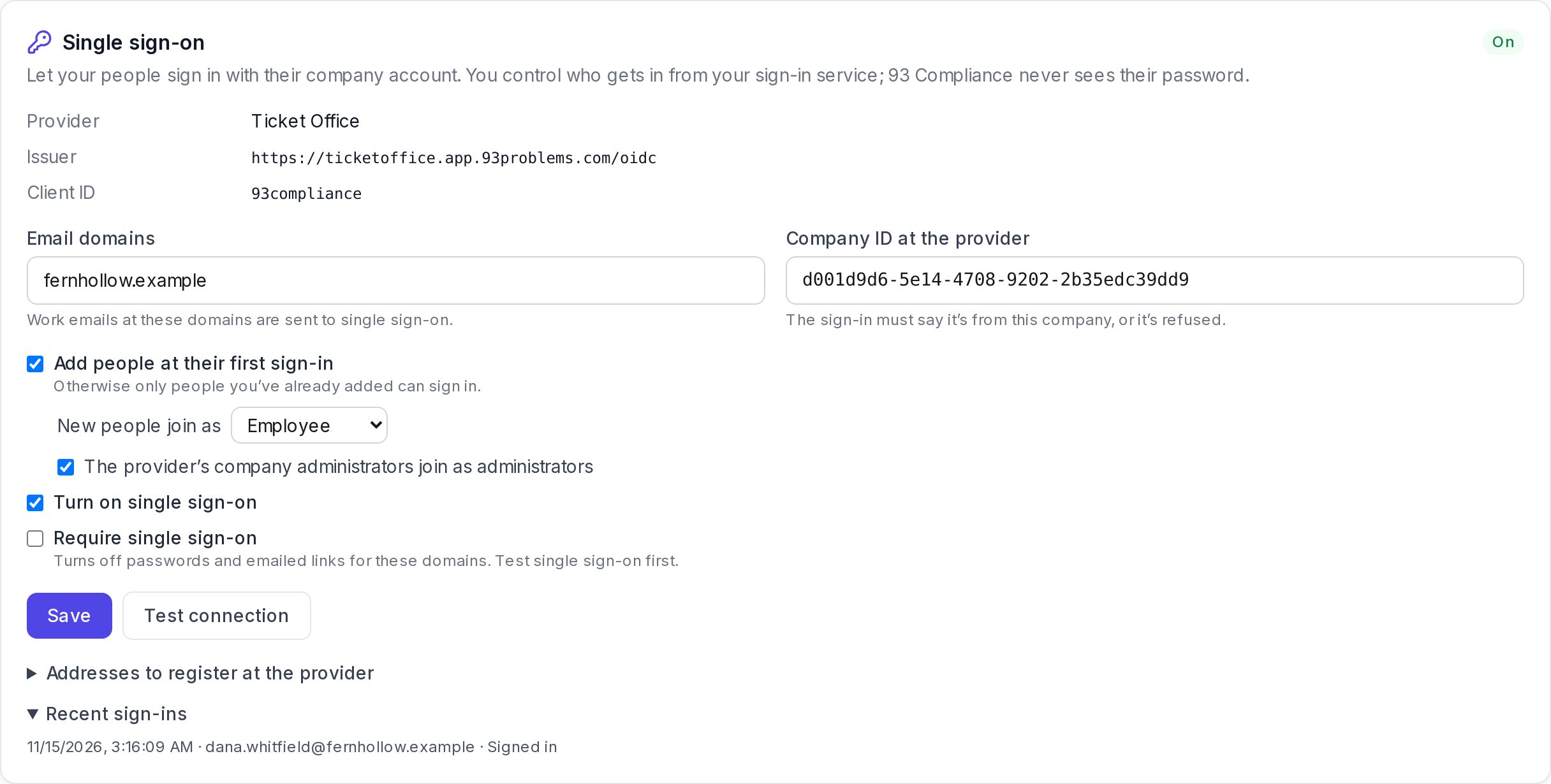
Fernhollow Health’s settings: its domain, its Ticket Office company ID, and the latest sign-in.
Require single sign-on turns off emailed links and passwords for your domains. Turn it on only after single sign-on works for you.
What your people see
- 1On the sign-in page they choose Sign in with SSO and type their work email.
- 2Their company’s sign-in page opens, saying it’s “to continue to 93 Compliance”. The first time, it asks them to allow 93 Compliance to see their name, email and company.
- 3They land in your company’s dashboard or their policies.
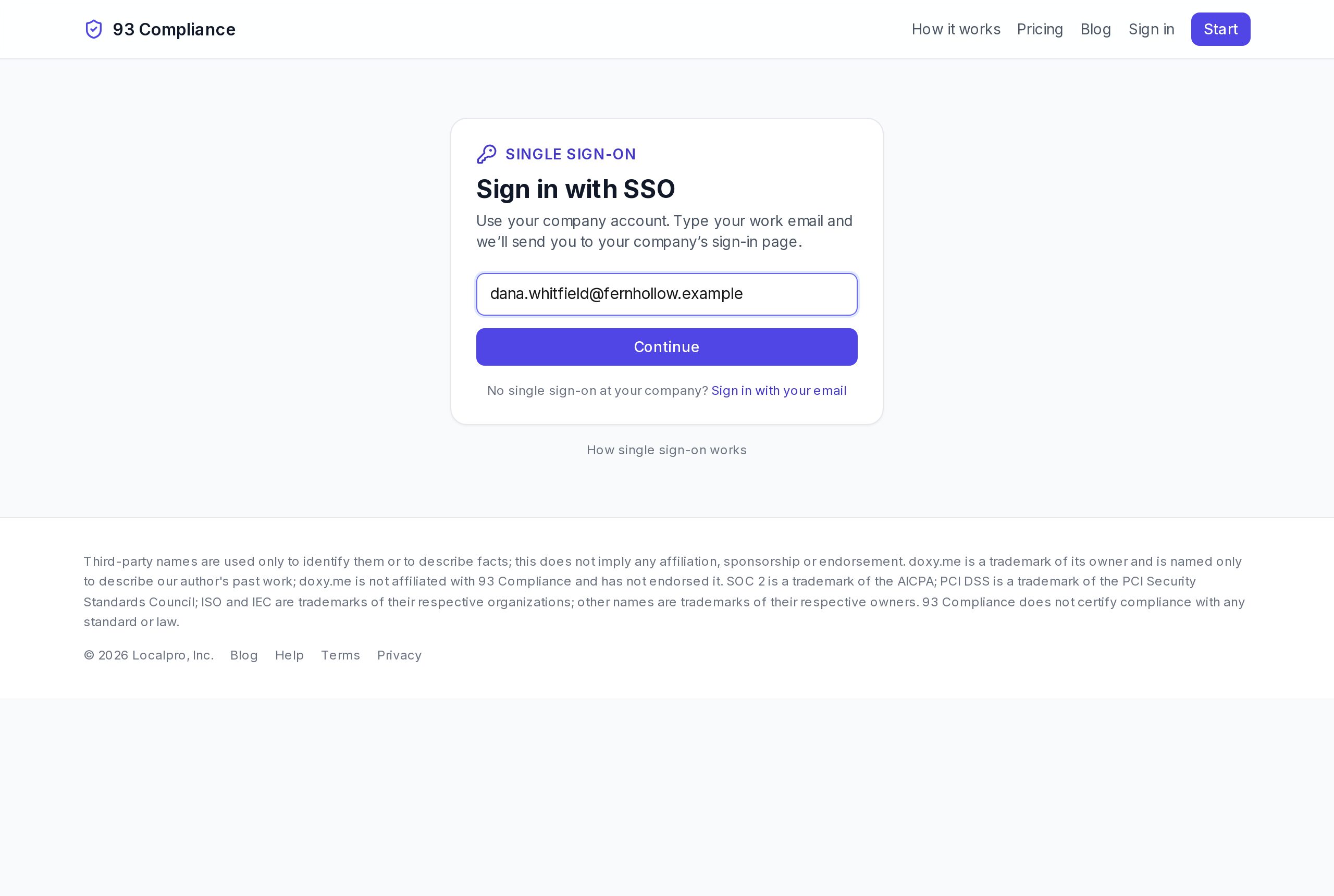
Step 1: the work email.
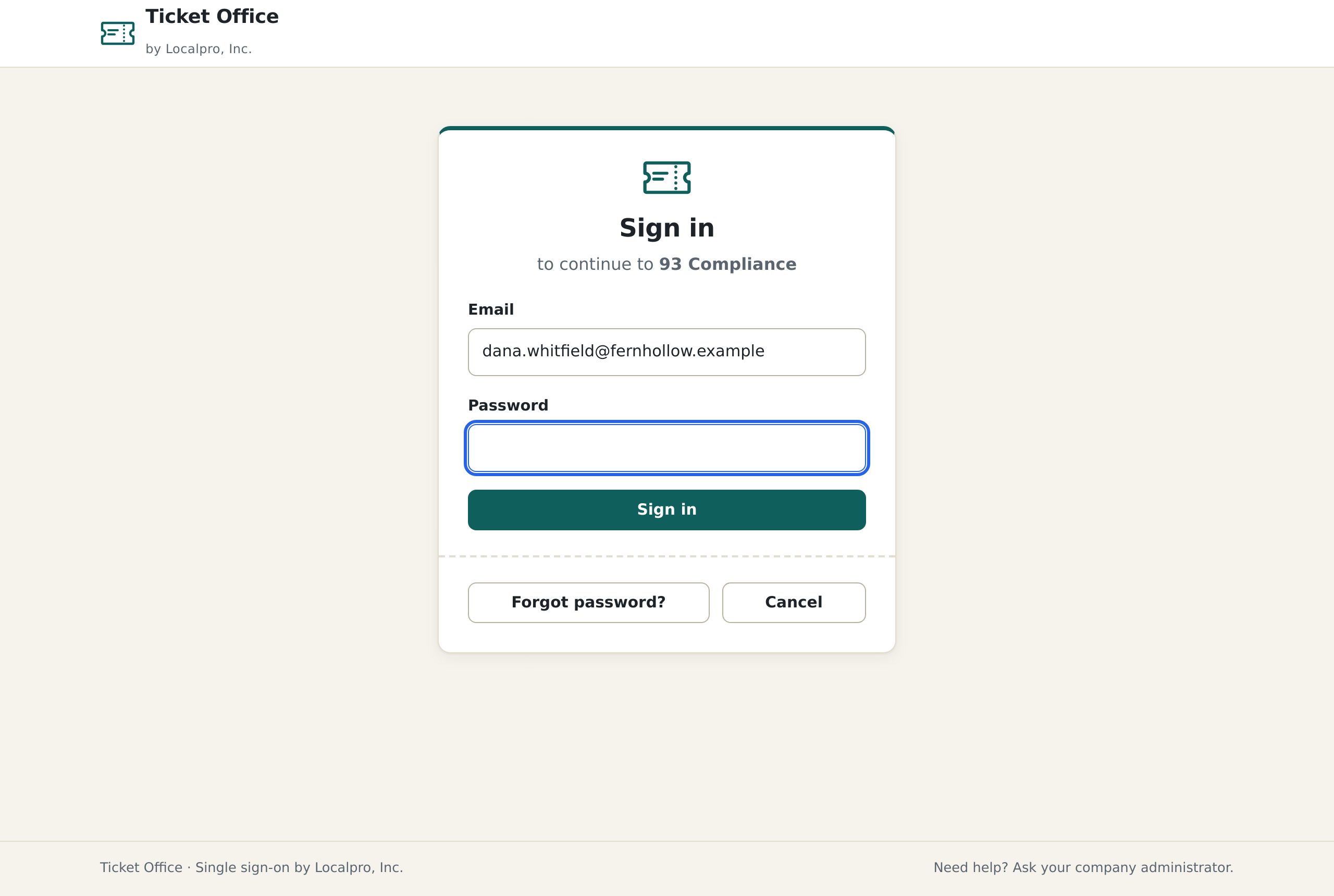
Step 2: the company sign-in page.
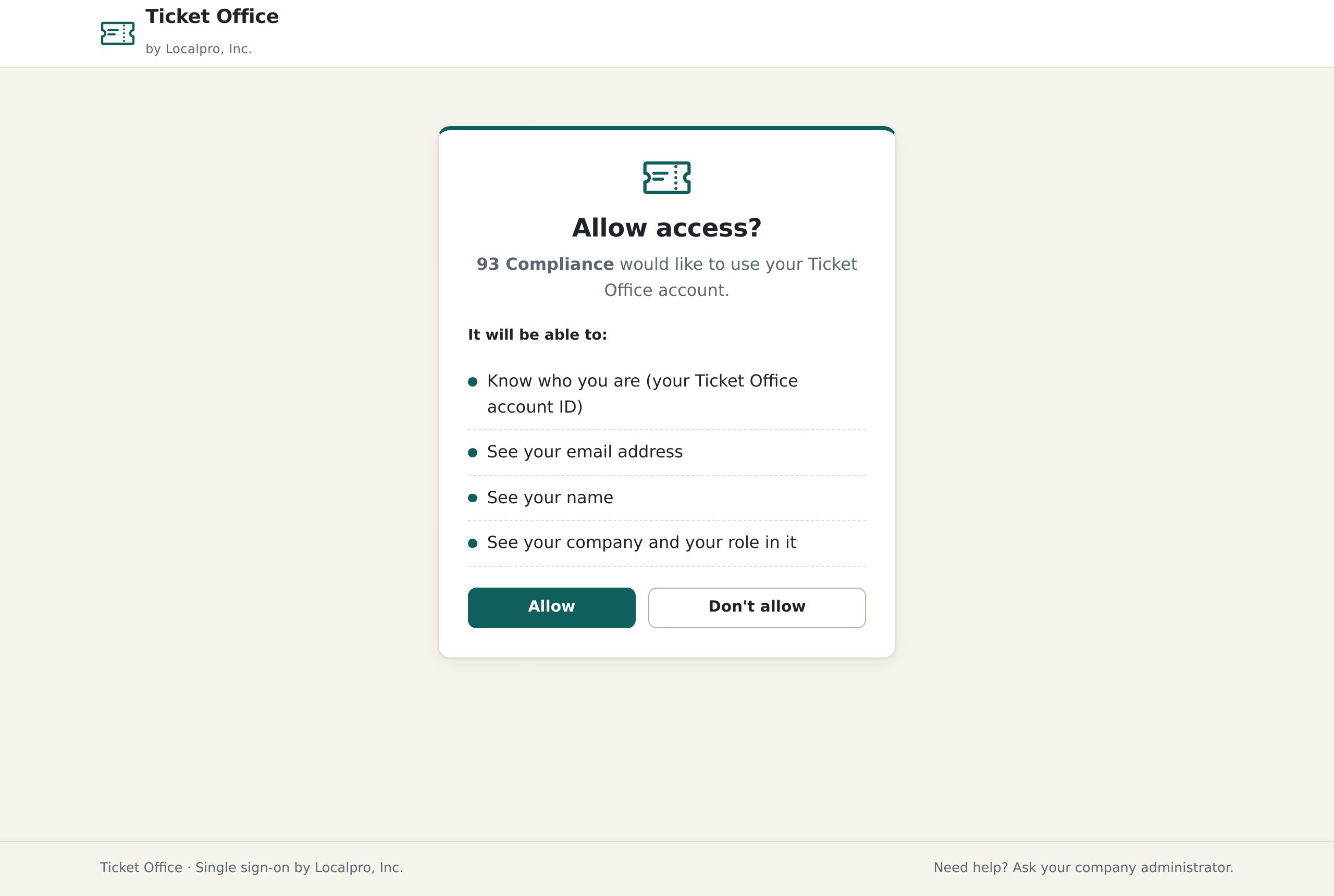
Once: allow 93 Compliance to see who they are and their company.
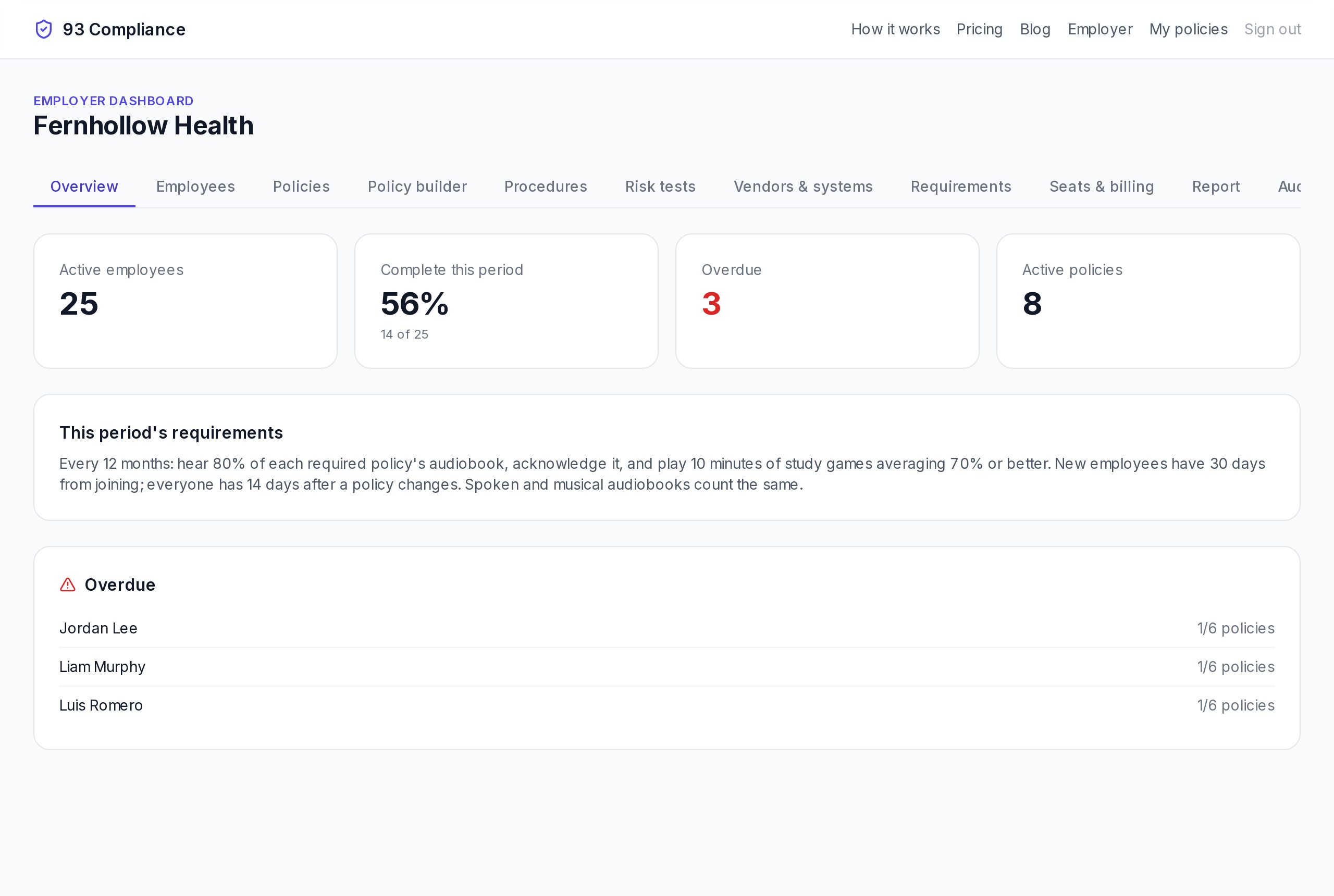
Step 3: in their own company.
Signing out
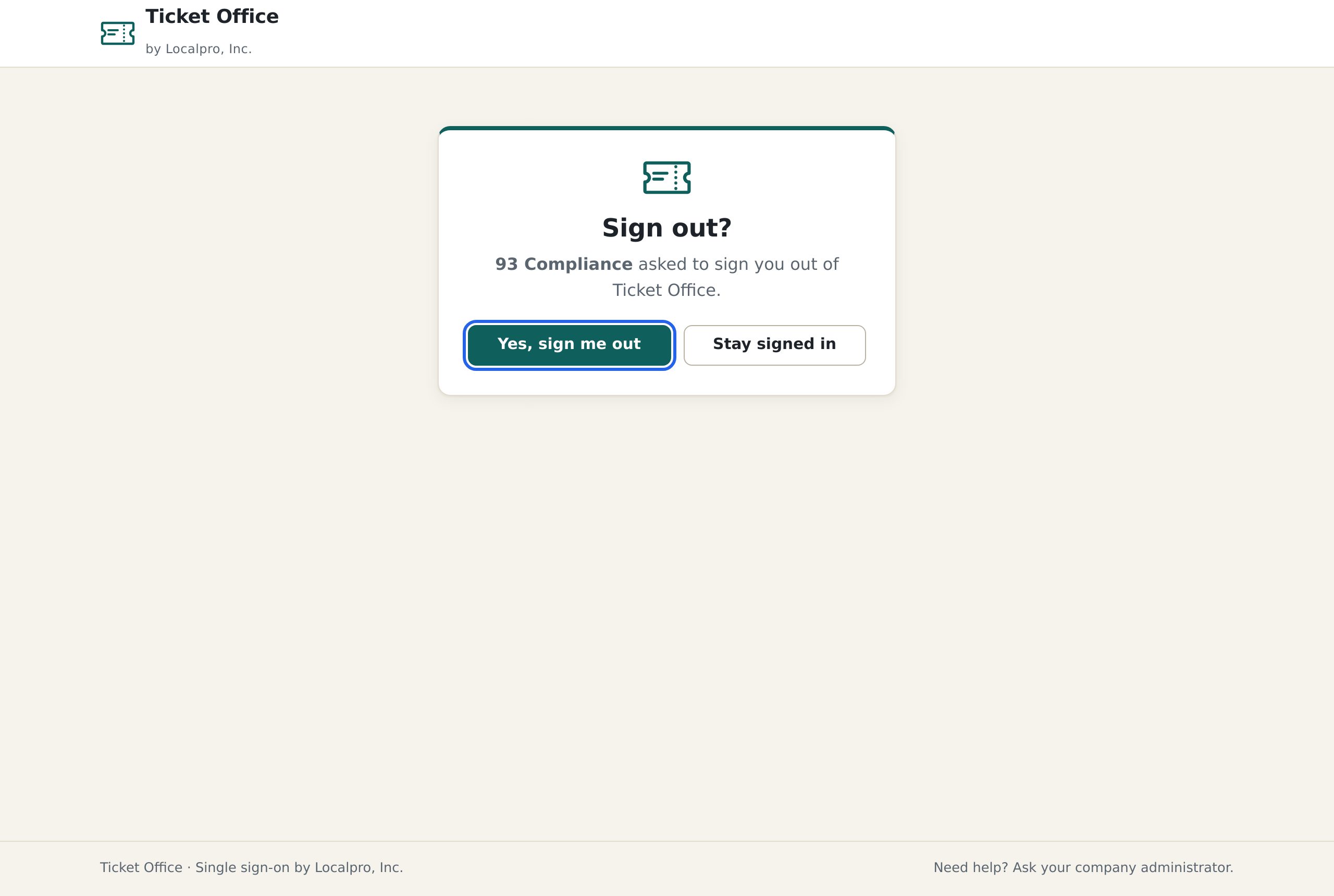
Sign out in 93 Compliance also signs them out of the company sign-in service, which asks to confirm. Otherwise the next “Sign in with SSO” would let them straight back in without a password.
When it says no
- No access: the person has no access to 93 Compliance at your sign-in service. It stops them there; give them access in Ticket Office.
- A different company: they signed in to the sign-in service as someone from another company. 93 Compliance refuses and makes no session.
- Removed: someone you removed in 93 Compliance can’t come back through single sign-on; restore them first.
- Expired or another browser: each sign-in works once, in the browser that started it, for 10 minutes.
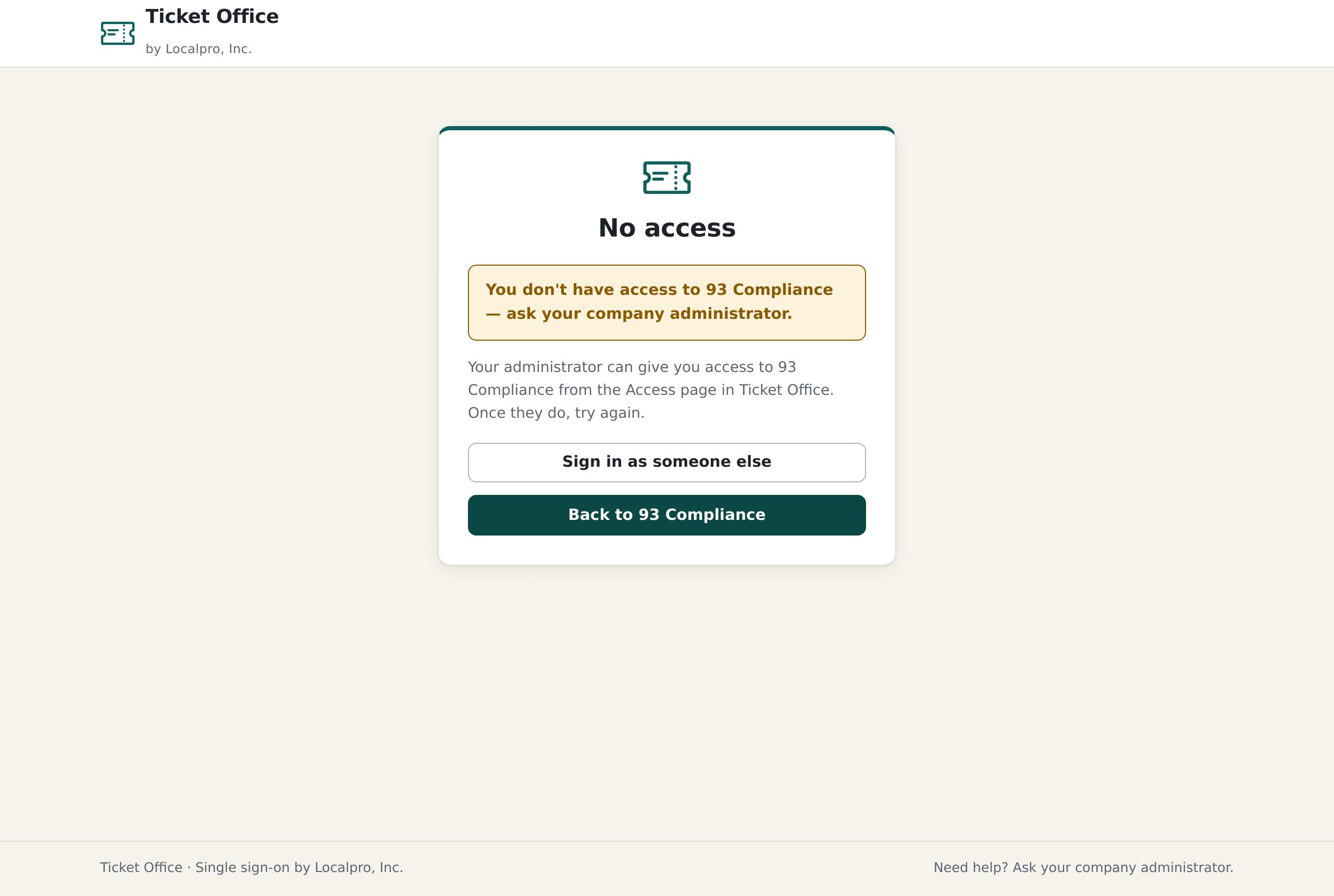
No access: stopped at the sign-in service.
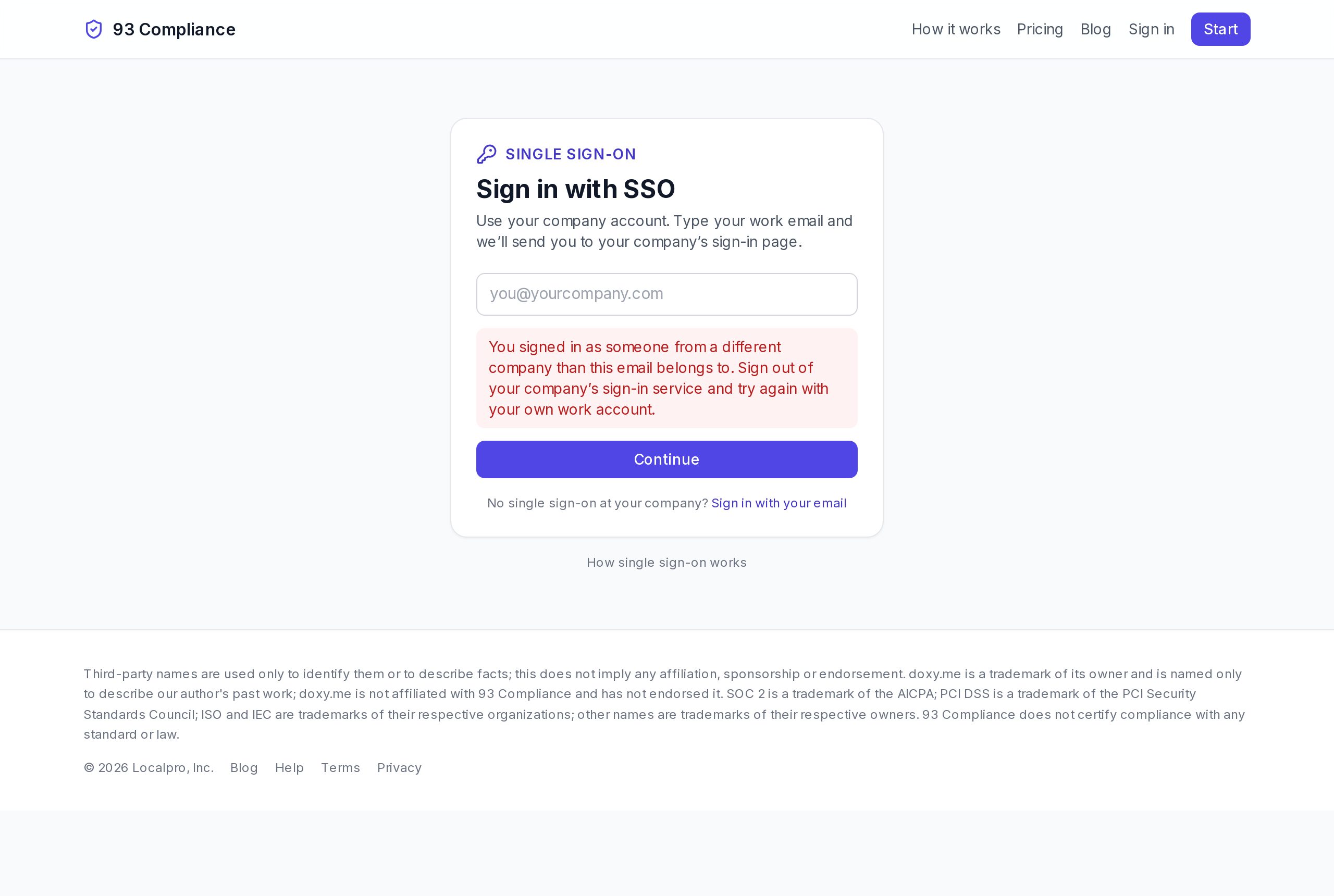
Another company: refused by 93 Compliance.
Recent sign-ins at the bottom of the settings card lists the last ten attempts, including refusals and why.