Set up and publish your Trust Center
Prove your domain, choose sections and documents, show subprocessors and status, then publish a notarized snapshot.
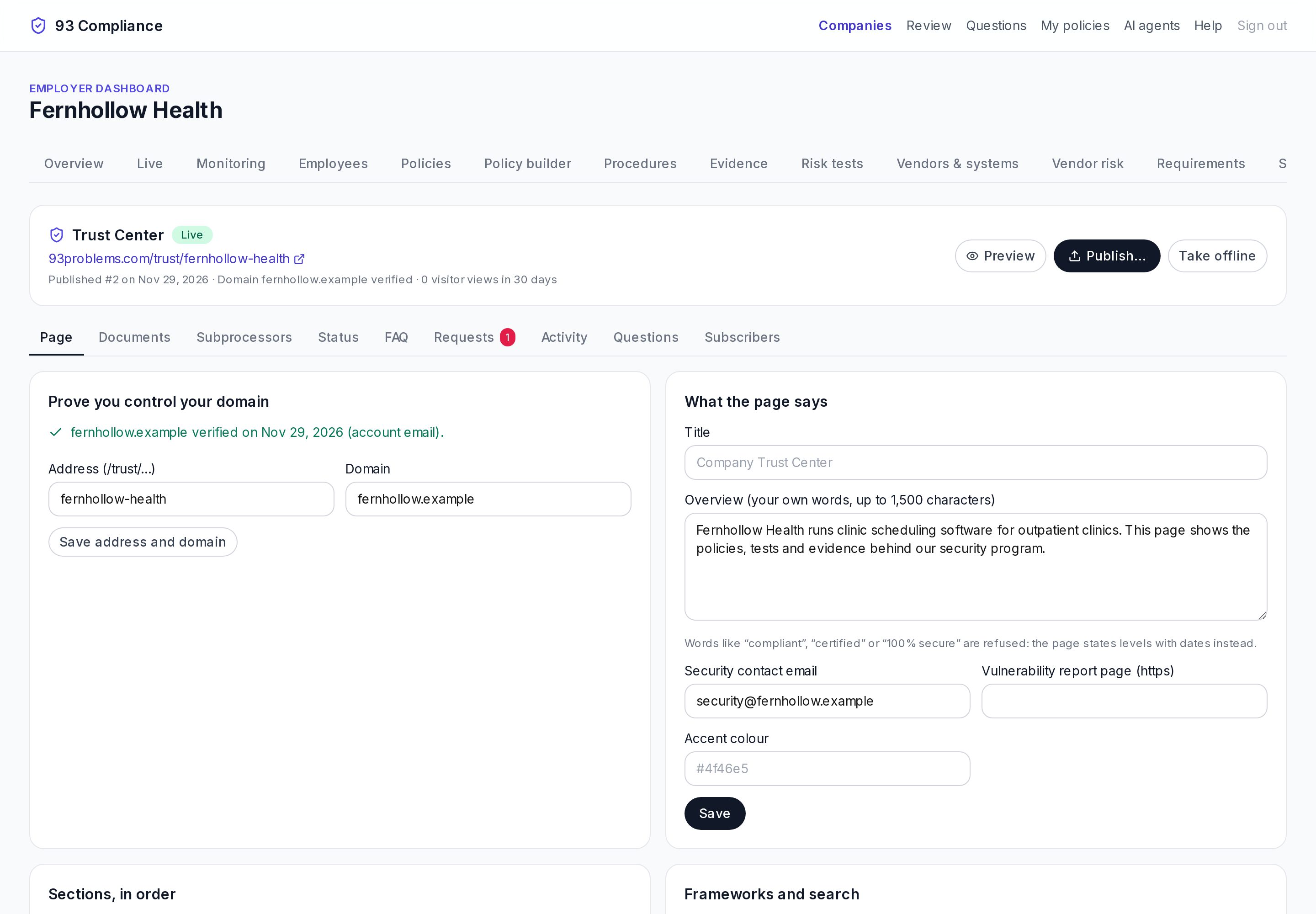
- 1Draft, Live or Paused
- 2Publish… freezes and notarizes a new snapshot
- 3Domain verification: DNS, meta tag or account email
- 4Order, show or hide the sections
Screens show Fernhollow Health, a made-up company we use for demos.
- 1Open the Trust tab and create your page: choose its address (93problems.com/trust/your-name) and enter your company’s domain. It starts as a Draft, with every published policy added behind an NDA.
- 2Prove you control your domain on the Page panel: a DNS TXT record, a meta tag on your home page, or a verified account email at that domain (never a free email provider). Until then the page is a draft only you can preview, so nobody can make a page under your name.
- 3Write What the page says: title, a short overview, your security contact. Order and show or hide the Sections.
- 4On Documents, set each one to Public, NDA or NDA + approval (shown to visitors as On request), and whether it can be downloaded. Add published policies, or upload a report, certificate, pen test or insurance letter.
- 5On Subprocessors, switch on the vendors from your vendor register to show, with their purpose, location, data and a link to their own trust page. A future “from” date lists one as upcoming.
- 6On Status, pick the monitors to show (by a public name, never their internal address), the service levels that have a source, and public notes for recent incidents.
- 7On FAQ, add questions and answers. Then choose Publish….
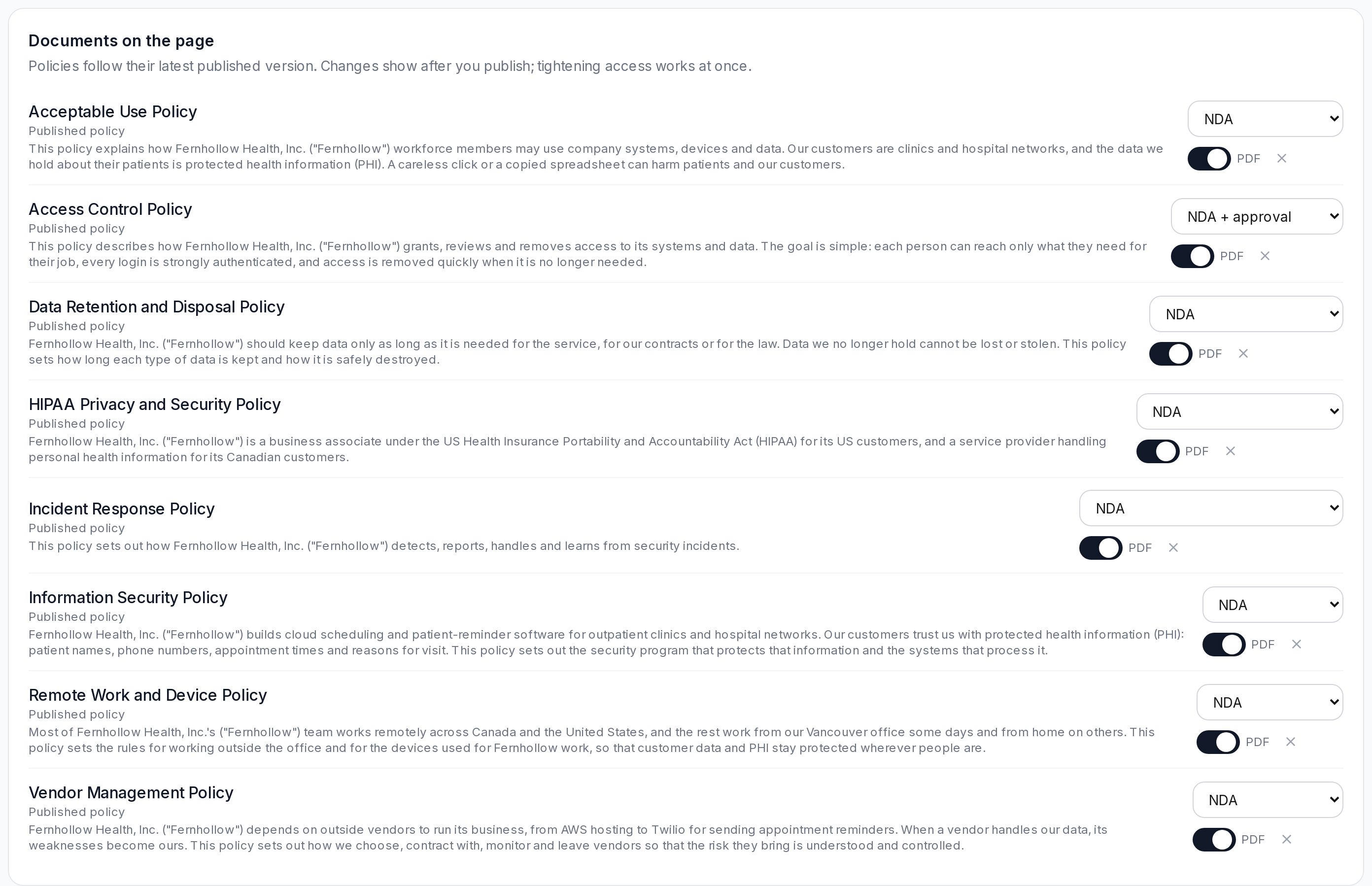
Each document is Public, NDA or NDA + approval.
Uploading a report
For an audit report or certificate, give its type, period or expiry, and the auditor or issuer: that’s what lets the framework card say Audited. You must tick that you have the right to publish it. Auditor and pen-test reports are usually licensed for restricted use, so making one Public asks you to confirm again.
Publishing
Publish… shows what will go out: the counts, and the changes subscribers will hear about. Publish now freezes the page as a snapshot, notarizes it and makes it live. The public page only changes when you publish again (status is the exception: it’s live). Take offline pauses it.
The page is noindex until you switch on Let search engines list this page (after your domain is verified).