For drivers: go online in the app, answer offers, and work each job step by step
Work → Dispatch in the 93 Problems app: online, offline or break; offers you can accept, decline or Accept if…; steps with photos and scans.
Drivers use the free 93 Problems app on iPhone or Android, signed in with the email the invitation went to. Dispatch is in the Work tab.
Go online, offline or on a break
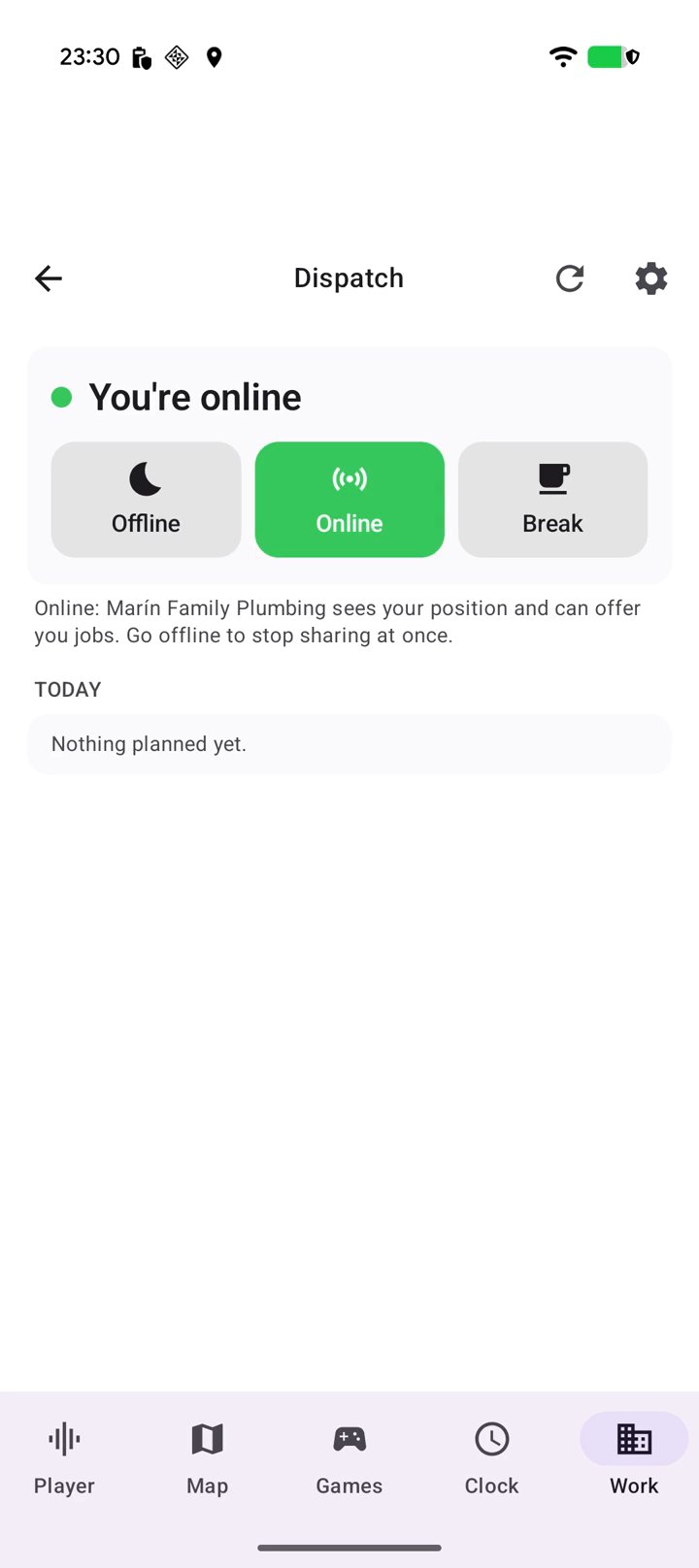
Dispatch on an Android phone, online for Marín Family Plumbing.
- Online: you get offers, and the business sees where you are.
- Break: no new offers. Your position is still shared until you go offline.
- Offline: nothing is shared and no offers come. Your position on our side is deleted at once.
The first time you go online for a business, the app asks you to agree to share your location while online, then for location permission. Turn on notifications too, so offers reach you when the app is closed.
While you’re online in Dispatch, Marín Family Plumbing sees where you are, so it can offer you the nearest jobs and see when you’ll arrive.
When you go offline, sharing stops at once and your position is deleted. Nothing is shared while you’re offline, and your trip log stays your own.
Check-ins and check-outs on a job record where you were at that moment.
You can withdraw this at any time; you then can’t go online for Marín Family Plumbing.
- 1The first time you tap Online for a business, the app asks you to agree. You may already have agreed when you accepted the invitation.
- 2Then the phone asks for location permission (and, the first time, for notifications, so offers can reach you when the app is closed).
- 3Nothing is shared until you go online. Going offline deletes your live position at once.
While you’re online, your phone sends its position about every 30 seconds, and about every 10 seconds while you drive to a job. An iPhone shows its blue location indicator. An Android phone shows a notification you can’t swipe away, Online for <business>, with a Go offline button: tap it to stop at once without opening the app.
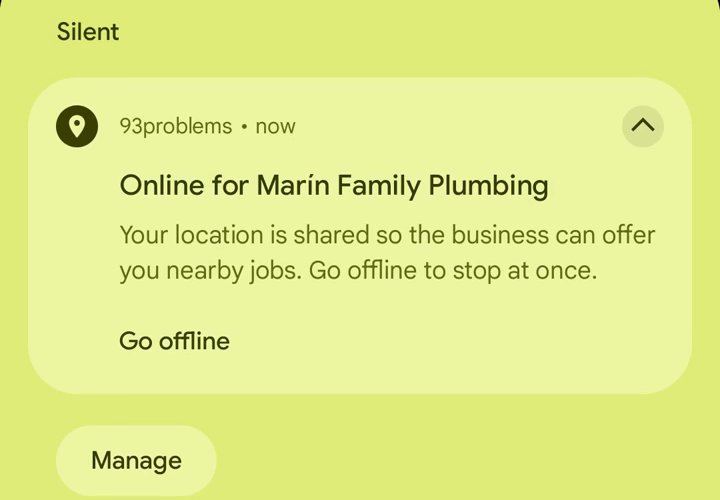
On Android, Go offline right from the notification.
Answer an offer
An offer rings and opens full screen, with a countdown. You can answer from the notification too: Accept, Decline, or Accept if… (which opens the app).
Small changes may be approved at once by the business’s rules. A note always goes to the office.
- Accept: if you’re first, It’s yours and the job is in your day. If not, Taken by ….
- Decline: pick a reason; the office sees it. (Declining from the notification records “Other”.)
- Accept if…: a different price, a different time, and/or a note. Small changes within the business’s rules are approved at once; otherwise Waiting for the office, and the job is held for you until they answer or time runs out.
Work the job
This step needs: a photo, a note
Your position and the time are recorded with this step.
- 1Got it on a job the office pushed to you, so they know you’ve seen it.
- 2Start driving (opens directions in the app’s Map tab), then I’ve arrived and Check in. A ride: Arrived at pickup, Passenger on board. A package: Arrived at pickup, Picked up.
- 3Check out when you’re done (a ride: Dropped off; a package: Delivered, or Hand off to a teammate).
If a step needs proof, a sheet asks for it: a photo, a barcode scan, a tracking number, a note. Every step records the time and where your phone was. If the phone can’t find your position, step outside or wait a moment and try again.
Your jobs, on more than one phone
Today on the Dispatch screen lists today’s jobs and agreed handoffs. Tasks (Android: Jobs) in the Work tab puts your dispatch jobs, handoffs and jobs from other websites in one list.
Your position is sent from Van phone. Take over to go online on this phone instead.
- 1Only one phone at a time shares your position. If you’re online on another phone, this one shows whose turn it is.
- 2Take over here (on Android: Take over from …) moves your online status to this phone. The other phone stops sending your position at once.
- 3Offers still arrive on all your phones. Answer on one and the others show Answered on … with the phone’s name.
- 4Give each phone a name, e.g. “Van phone”: on iPhone under Phones (the phone icon at the top of Dispatch), on Android in the settings icon’s This phone’s name. The office sees which phone did each step.
Related
More in 93 Dispatch
- 93 Dispatch: send jobs to your drivers’ phones and watch them get done
- Set up 93 Dispatch: turn it on, invite drivers, choose your rules
- Send a job: push it to one driver, or offer it to the nearest and let them Accept if…
- The live board: who is online, where every job stands, and the proof
- Rides and packages: riders ask through a link, parcels carry a tracking link
- For drivers: go online in the app, answer offers, and work each job step by step
- Dispatch and your location: shared only while you’re online, kept only with the job